Tag: dell

  • Equallogic sizing – No Lefthand work here

    Equallogic sizing – No Lefthand work here

    In my current role within Dell I do pick up a lot of info about customer systems. Usually I get involved when performance is lagging and customers are complaining. From there I have to educate both the customer and the Dell force, in how to size a Equallogic array properly.

    Denmark being a small country, most of the Equallogic installations are in the 2-3 arrays size, and due to the customer size it is not easy to add extra arrays as we want. So getting the sizing right from the beginning is cruzial. After we got the hybrid arrays in the Equallogic range, they are properly the most sold type right after the NL-SAS based ones.

    So down to SMB sizing of Equallogic; From a Compellent perspective, and a rule of thumb from those systems, we need to get the SSD layer sized properly and not oversubscribe the NL-SAS based PSxxxxE arrays. Compellent uses 20% of all performance should come from Tier-3 (Typical NL-SAS), and all writes should be efficiently handled by Tier-1 (Write-Inensive SSD’s). From my point of view, we can transfer those rules easily to Equallogic sizing.

    Equallogic
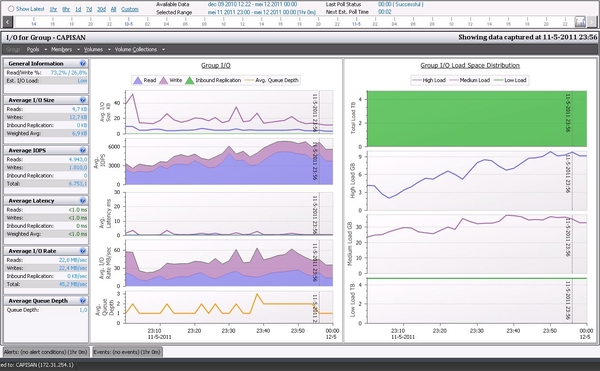
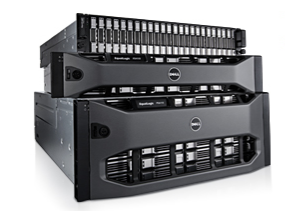
    3 array system


    • The top system in this picture is a PS6110XV with 24x300GB 15K drives in Raid-10
    • The middle system is a PS6110X with 24x600GB 10K drives in raid-10.
    • Last system is a PS4110E with 12x2TB 7.2K drives in raid-50.

    As You might notice 62% of all space is on the PS4110E, and with Equallogic capacity loadbalancing kickin in, it means 62% of every volume resides on the slowest drives. In this case we have 38% of volumes on somewhat fast drives, and with a normal read-write ratio of 70/30 this should be fairly ok. Only comment here was to have 15K drives on 2 arrays and 600GB drives, which should add up to 40% of the combined storage. This customer, did choose to separate the volumes, so some of them only reside on the XV + the E array. For these volumes the capacity loadbalancing was way off, with a 13% of volume space on the XV and 87% on the E. No wonder this costumer complained about performance issues.

    Back to sizing with hybrids: In many cases we have sold the popular PS6210XS with 9TB capacity, together with a PS4110E with 2TB or larger drives. In this scenario we have roughly 40% on the XS, about 20% of this space is on the SSD’s. This also translates into approx 2TB SSD capacity for a 25TB system, which is way under the rules stated at the beginning.

    So get a proper 25TB Equallogic system with more than 10.000 iops, we will need to use the following

    • A PS6210XS with 18TB capacity, it has 7*800GB SSD, and 17×1.2TB 10K drives.
    • A PS4110E with 12x1TB disks, in a RAID-50, this gives us a little more than 7TB space.

    This would means that 4TB SSD space can be used automatically as Tier-1, rest of the 10K drives in the XS array is considered as Tier-2, and the remaining space on the E array is tier-3. And Tier-3 space is only approx 30% of the total capacity.

    So what about those large 2,3,4TB drives ? Never place them in the same pool as a hybrid, your capacity scaling will be way off. But create a separate low-performance pool for the volumes that do not need more performance than the NL-SAS drives provide.

    If your unsure which volumes can be placed in which pools, do consider running a Dpack performance gathering tool, together with you Dell presales people. It can be obtained from here; Dell Dpack


  • Windows Server 2012 vs Equallogic

    Windows Server 2012 vs Equallogic

    Do you need an guide how to use the VSS/VDS features in Windows Server 2012 when configuring a new volume.

    Use this simple guide, and avoid using the JAVA interface of Equallogic when creating new LUNS/volumes.

    First of all you need to install the Equallogic HIT/ME toolkit (Host Integration Toolkit/Microsoft Edition), which is downloadable from the Equallogic homepage when you have bought the first array. This little piece of software should be installed on all physical and virtual servers who need access to the SAN.

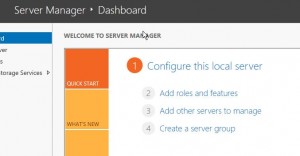
    Roles and features

    Second you need to install some additional features from the Server Manager in 2012.

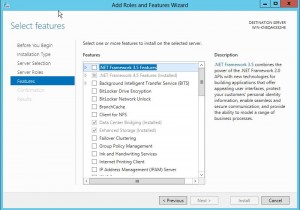
    EQL_WS2012_2

    For all the integration to work, install the Enhanced storage, and optional the Data Center Bridging. Then your all set from an installation perspective.

    EQL_WS2012_3

    Now you need to start the Snapshot manager, this can be done from CLI, og from the Metro Gui.

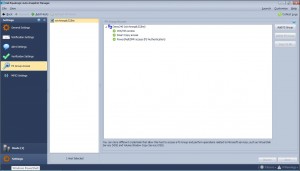
    There’s 3 parts you need to check.

    VSS/VDS access should be same as the CHAP credentials you entered when installing the Equallogic SAN from Remote Setup Wizard.

    Smart Copy access should be same credentials as VSS/VDS

    Powershell/SMP access should have the grpadmin credentials

    EQL_WS2012_4

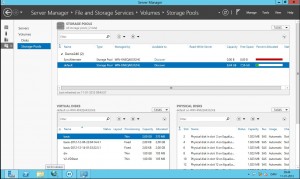
    All done from the Equallogic part of it. You need to back to the Server Manager in Windows Server 2012 and choose Storage Pools. If you do not see the Equallogic under Storage Pool, you might want to rescan the storage (just like VMware :-)) and it should be shown within a mimute or 2.

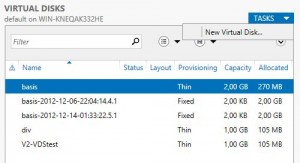
    Then choose the right storage pool where you want to see volumes and snapshots. They all appear under Virtual Disk part in the lower left hand.

    EQL_WS2012_5

    On this screen you see all the preconfigured volumes, and the online snapshots attached available

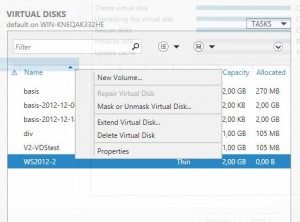
    Now it is finally time to create a new volume, so right-click on TASKS and choose New Virtual Disk

    EQL_WS2012_6

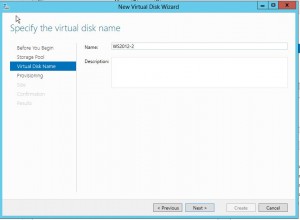
    Choose a name for the Volume

    EQL_WS2012_7

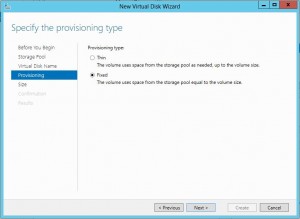
    Also choose from Thin provisioned volume or a fixed pre-allocated size.

    EQL_WS2012_8

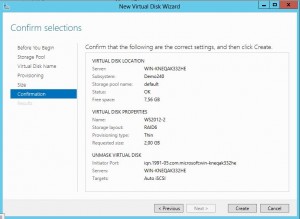
    Then check all your selections and go back and correct if anything is wrong.

    When done hit Create

    EQL_WS2012_9

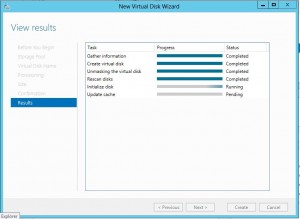
    Now VDS and Equallogic is working to create your volume.

    This is how it is all done, without using the Java interface

    EQL_WS2012_10

    Last thing to do is creating the filesystem, and mount the volume as either a folder or a drive letter.

    It simply can’t be more simple than this. I do know the Linux-guys out there might correct me, but in my next article I will show the simple steps on an Redhat Enterprise Server.

  • Equallogic and IOPS

    Equallogic and IOPS

    I do see a lot of questions regarding Equallogic and IOPS, especially after the Hybrid arrays surfaced in to the public. The XVS from the PS6000-series and the new XS from the 4100 and 6100 series are those arrays I get an IOPS request for most often.

    But it is not so simpel to state an IOPS number for these arrays, I do know the simple math when adding IOPS performance from all disks. This though, does not take a lot of things into calculation like how much can the mirrored cache on the controllers add in performance, what are the read/write ratio etcetera.

    If you talk with some of the Dell partners who are certified in Dell storage, they are able to help with sizing of the Equallogic platform, but also take the above mentioned points into consideration. Dell has an on-line sizing tool, where the partner can create both existing environment (of Equallogic) and show the predicted performance when you buy additional arrays. The same tool certainly also show what a new setup will look like from performance perspective.

    Before you do that why not run Dpack analyse ?

    Dpack is Dell’s Performance Analysis Collection Kit which runs for 4 to 24 hours as usual, but is also able to log for up to 7 days if needed. Dpack runs in memory, so you don not need to install anything and after collecting is done you simply send in the collected data and get a nice performance report back from your Dell partner.

    After reading the report, just tell your Dell Partner to size an Equallogic platform based on the Dpack outcome. Now you’re done and problably get a fine quote with a number of Equallogic arrays. This can be made so simple.

    I’m sorry for not detailing the IOPS for the XVS or XS arrays, but at Dell we use a thing called RPS score which is very dependent of the read/write ratio and the arrays choosen.

  • Client Hyper-V

    Client Hyper-V

    I`m playing around with the new client hyper-v role in Windows 8 Pro ,and it seems like Windows is not just for the mainstreame user. The last couple of days there’s been a lot of writing for and against Hyper-V for the professional users.

    From my view Microsoft finally got it right, I do not have anything against the Metro surface of Win8 it, it simply works well, both with a keyboard or a touchscreen, and people instantly knows where the windows key is.
    This hurts just a little a bit for an old Linux guy like my self, but the when I realized that Microsoft have made it easy for me to create and manage virtual machines in a simple Windows 8, I was thrilled.
    I’m doing a lot of demo stuff for different partners and customers, and often has to reset my environment back to “last known good configuration” when making a new demo ready. So using the builtin snapshots makes it less painful than before. I’ve been using VMware workstation for many years to run my demo environment which consists of both Microsoft and Redhat servers and a virtual Equallogic. This environment is going to be moved to the Microsoft Client Hyper-V with only my Redhat and Linux machines being the outstanding points I need to ensure is working.
    Playing around with an Fedora 17, I came across some issues when trying to install the VM tools, the Fedora wouldn’t start but i might be an graphic driver issue.
    This being said my demo platform is also being “refurbished” to a Windows 2012 Core installation with Equallogic Hit/ME tools installed and all managed from Server manager in the Windows 8. This is a an add-on for Windows 8 and when running this kind of setup it should make my demos less painfull as I will be able to manage all from my native laptop and from a virtualized server.

  • Equallogic all over (again)

    Equallogic all over (again)

    EQL PS6110/4110Dell recently released the latest series of PS-series array in the Equallogic family,this release with the series 14 and 17 controllers adds 10Gbit to the 6100 and 4100’s. What’s most important with these arrays, is the addition of both copper and fiberbased 10Gbit connections. The copper is standard RJ-45 whch requires Kat-7 cabling, but together with the 8024 from the classic Powerconnect range, you’ll have a cheap killer-setup.

    The fiber is standard SFP+ connections which can be utilized with either TwinAxial copper-cables with integrated SFP+ or with SFP LC modules for longer distances.This combination of both fiber and copper options, is for Equallogic “old school”, this was last featured on Generation 1 and 2 arrays, and series 1 and 2 controllers all the way back in 2004/5

    The biggest news story on the new additions is that for the first time the PS4000-series SMB range of arrays get 10Gbit interfaces, though you are still limited to a max of 2 arrays on the 4000-family. The normal 6000 series can have up to 16 arrays in the same SAN, or 2.1PB of data in total across 768 diskdrives, whereas the 4000 series can hav a total of 48 drives.

    The limitation is still in the numbers of volumes/snapshots/replications you can have on the 4000 series, no change to this scheme

    One other important feature to remember is “vertical port failover” which was re-introduced with the PS6100/4100 series. With reintroduction I mean this is also “old school”, and it is a nice feature, with a tendancy to confuse the IT-admins, as they have to count the number of lights on the switch. It does not matter if the link is activ on controller 1 or 2.

    With the new arrays it is important to populate the same port on both controllers, e.g. RJ-45 or SFP+. You actually have 4 ports in total on the backside, plus two 100Mbit management ports, but you will only have light in one of the four dataports. The vertical port failover will happen between the same type of port, and if accidently have choosen to use SFP+ on controller 1, and RJ-4 on controller 2, you will get downtime if a controller failover should happen.

    The new series of arrays will provide you with up to 160Gbit throughput for a large SAN, and set you back a few bucks. But a Equallogic solution is still cheap, especially when you compare others against the PS6110XS with 7 pcs of large SSD drives and 17 pcs of 10.000rpm drives for a total of +20.000 Iops and 10TB useable storage capacity, all in a single box. And with the performance loadbalancing inside the array it’s a killer.

    About me: I’ve been working with (not for) Equallogic since the early days back in 2004/2005 and firmware revision 0.91. These arrays are my small babies, and when compared to all the other SAN products I havee encountered during the last 17 years, they are still no.1.

  • The english version

    The english version

    Here at this site, I will keep al my arcles written in english. It might be in a combination of both uk-english, and us-english as I get my influence on the language from both sources.

    Most of the time the blogs right here will contain some rather nerdy stuff about server, storage and networking and all what’s in between those segments. I have already written some well-recieved articles about my professional baby; The Equallogic storage arrays which I have been following since the early days of 2005. Except for this networking with Force10 and Dell servers might also be topics here.

    It would be intriguing to get some more knowledge of Dell Secureworks, but this might take some time before I’m ready to post about this.

    I reserve the right to also post some blogs of private character, for those people I got to know around Europe and rest of the world.

  • Short definitions

    Short definitions

    These are very useful in my line of work

    • DCB  = Data Center Bridging
    • FC Native Fibre Channel = Protocol
    • FCF = Fibre Channel Forwarder (an Ethernet switch capable of handling Encapsulation/De-encapsulation of FCoE frames and some or all FC services)
    • FCID = Fibre Channel ID (24 Bit Routable address)
    • FCoE = Fibre Channel over Ethernet
    • FC-MAP = A 24-Bit value identifying an individual fabric
    • FIP = FCoE Initialization Protocol
    • FLOGI = FC Fabric Login
    • FPMA =  Fabric Provided MAC Address
    • PLOGI = FC Port Login
    • PRLI = Process Login
    • SAN =  Storage Area Network (switching infrastructure)
    • SCSI = Small Computer Systems Interface
  • Backup is not for real men

    Backup is not for real men

    Melodi: Yesterday

    Yesterday,
    All those backups seemed a waste of pay.
    Now my database has gone away.
    Oh I believe in yesterday.

    Suddenly,
    There’s not half the files there used to be,
    And there’s a milestone hanging over me
    The system crashed so suddenly.

    I pushed something wrong
    What it was I could not say.
    Now all my data’s gone
    and I long for yesterday-ay-ay-ay.

    Yesterday,
    The need for back-ups seemed so far away.
    I knew my data was all here to stay,
    Now I believe in yesterday.

  • Going to a new world

    Going to a new world

    This is about Merging pools in Equallogic
    When Equallogic was introduced back in 2004 we had no pools to divide all the arrays in to. Back then all arrays was filled with SATA drives, and it was only with the introduction of the PS3000 series we got SAS drives. I do still believe most of the pressure was from the Exchange guys back then to get the SAS drives, when they had a terrifying demand for Raid-10 and SAS 15.000 rpm.
    Then we needed to divide all the storage arrays into different pools, and separating the disk spindle types into each compartement. This worked well for a number of years, and customers were happy to upgrade to a max of 16 arrays in each SAN, which after the PS5500 surfaced could be extended to 768 diskdrives in each SAN. Today we can do 1.5 Petabyte, and in the near future with certification of the 3TB SATA drives, Equallogic reaches even higher to 2.1 Petabyte.
    Then everything changed with the introduction of the 5.1 firmware with the new autotiering feature, doing a whole lot to both existing installations, but also when selling SAN’s to new customers. Now we place all arrays back into the same pool with a maximum of 8 arrays in each pool and still a total of 16 arrays. This placed customers in an awkward situation where they needed to buy additional arrays (or loan a demo from Dell), to be able to move the existing arrays into a single pool.
    Only a few customers are aware of the Merging Pool feature which has been integrated into the Group manager (browser). With this feature you can migrate two pools into one, and then get all the benefits of the auto tiering feature, which by far is the most sexy thing Equallogic has introduced since 2004 (My believe).
    So please do migrate all the arrays online into one pool, I will do an test next week to actually see this work in real life, a not only in the virtual Equallogic I’m running.